This article explains how Hypothesis users can customize keyboard shortcuts for specific actions. For a list of default shortcuts, see our Keyboard Shortcuts for Hypothesis article. We also provide guides on creating annotations using only the keyboard and on using Hypothesis with screen readers.
Customizing Keyboard Shortcuts
Hypothesis users can now customize the keyboard shortcuts in the Hypothesis app performing the steps below.
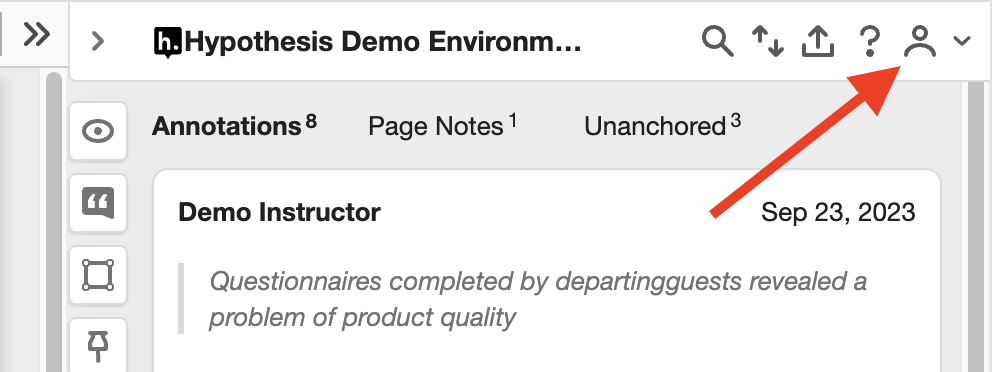
- In the Hypothesis Sidebar, click on the Account icon (the person icon in the top-right).
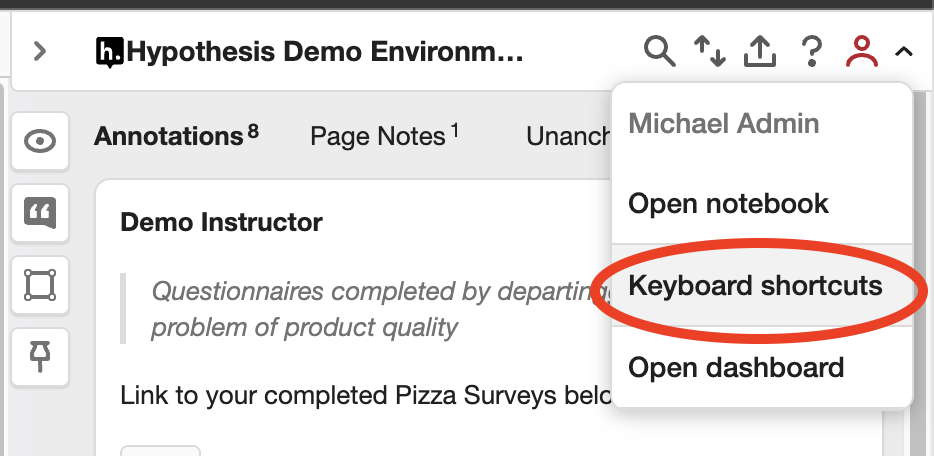
- After clicking the Account icon, select Keyboard Shortcuts. This will open the Keyboard Shortcuts modal where you can see the different actions and the keyboard shortcut for each action.
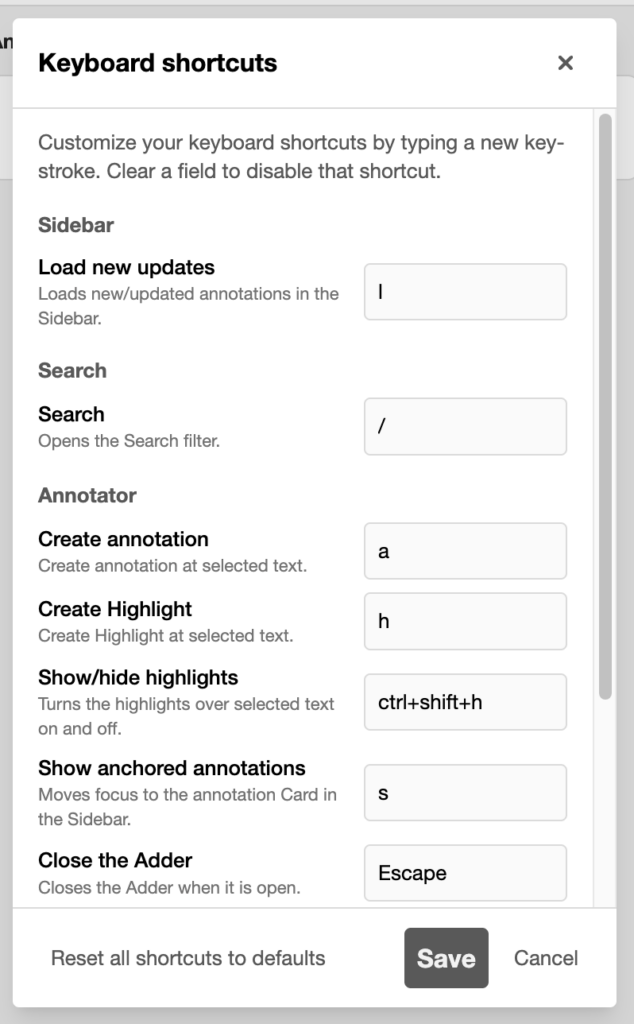
- To change a shortcut, click the box next to an action and press your desired keys. To un-assign a shortcut, click the box and press Backspace or Delete to clear it.
- Click Save to keep your changes. To restore default shortcuts, click Reset all shortcuts to defaults. To discard unsaved changes, click Cancel.
Potential Issues and Troubleshooting
Conflicting Shortcuts within the Hypothesis App
If multiple actions share the same shortcut, a warning will appear at the top of the keyboard shortcut window, showing the conflicting shortcut and actions.
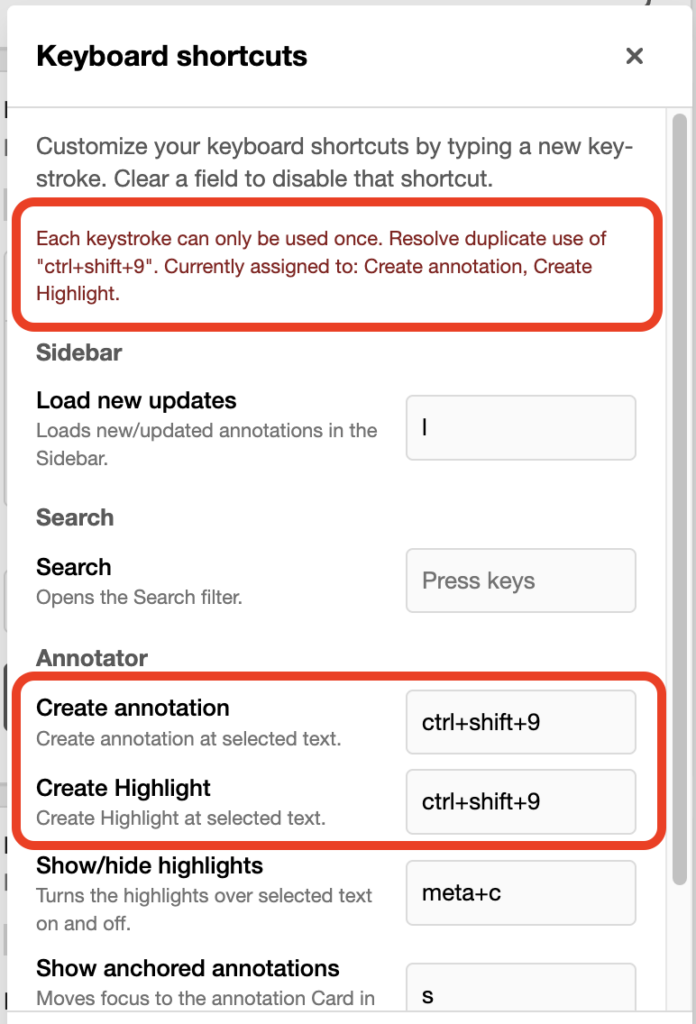
The keyboard shortcut conflict needs to be resolved by ensuring that each shortcut is unique. If two actions share the same shortcut, the system will not allow you to save your changes.
Conflicting Shortcuts with other Apps
By default, Hypothesis shortcuts avoid conflicts with major web browsers. However, other apps or extensions may use the same shortcuts. If conflicts occur, you may need to reassign shortcuts in Hypothesis or the conflicting app, if that app allows it.
When reassigning shortcuts, Hypothesis won’t warn you of conflicts with other apps. It’s best to test your new shortcut to ensure it works properly.
Below are links to major web browsers and their keyboard shortcuts. You may use these as a reference to check for potential conflicts with your assigned Hypothesis shortcuts.
- Google Chrome Keyboard Shortcuts
- Mozilla Firefox Keyboard Shortcuts
- Microsoft Edge Keyboard Shortcuts
- Safari Keyboard Shortcuts