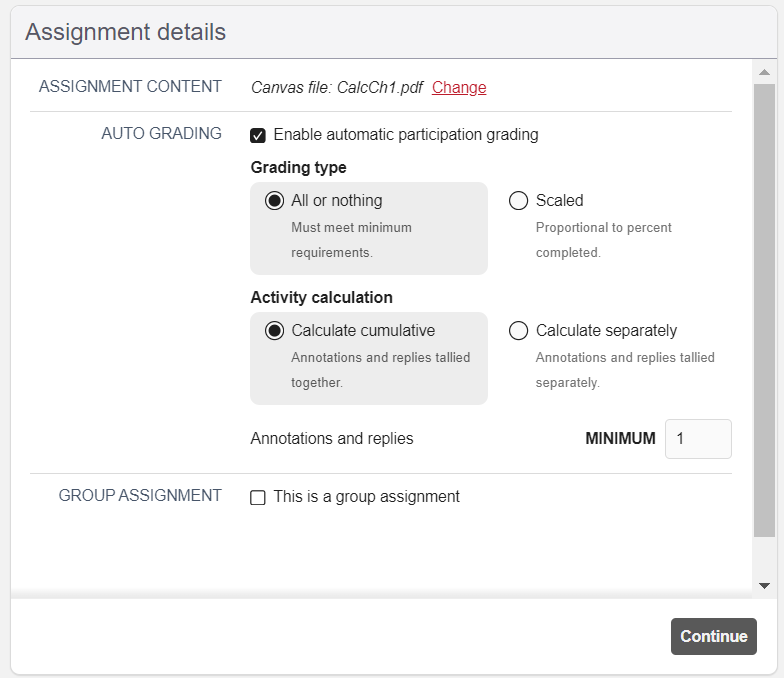
auto-grading setup screen

By mdiroberts | 26 September, 2024

A window with "Assignment details" at the top. The first line says "assignment content" and next to it is listed the document the professor has already chosen to use in Hypothesis. On the next line we see "Auto Grading", a check box next to "enable auto grading" that is checked, and with several radio button options. The first set of radio buttons are labeled "grading type" with two options and descriptions. Option 1 is "All or nothing" and the description reads "Must meet minimum requirements". The second option says "Scales" and the description says "Proportional to percent completed. The second set of radio button options is labeled "Activity calculation". The first option there is labeled "Calculate cumulative" with the description "Annotations and replies tallied together". The second option is labeled "Calculate separately" with the description "Annotations and replies tallied separately". "All or nothing" and "Calculate cumulative" are both selected. Under these selections is a category called "Annotations and replies" and a text box labeled "Minimum" with the number 1 in it. Under the grading section there's another section called "Group Assignment" with its checkbox unchecked.

Share this article