Why should an instructor edit a Hypothesis assignment?
An instructor may need to edit a Hypothesis assignment to change any of the following settings:
- selected reading for the assignment
- group assignment settings
- auto grading settings
How do I edit a Hypothesis assignment?
- In the Canvas navigation pane, select Assignments.
- From your Assignments page, find the assignment, click the 3 dots at the right, and select Edit.

- In the Edit Assignment window, click More Options.
- Scroll to locate the section labeled Submission Type. Make sure the External Tool is selected from the drop-down, then click the Find button.

- From the Configure External Tool window, select Hypothesis. Clicking Hypothesis will take you to a dialog where you can see the current document selected and group and auto grading settings.

Clicking Hypothesis will take you to a dialog where you can see the current document selected and group and auto grading settings.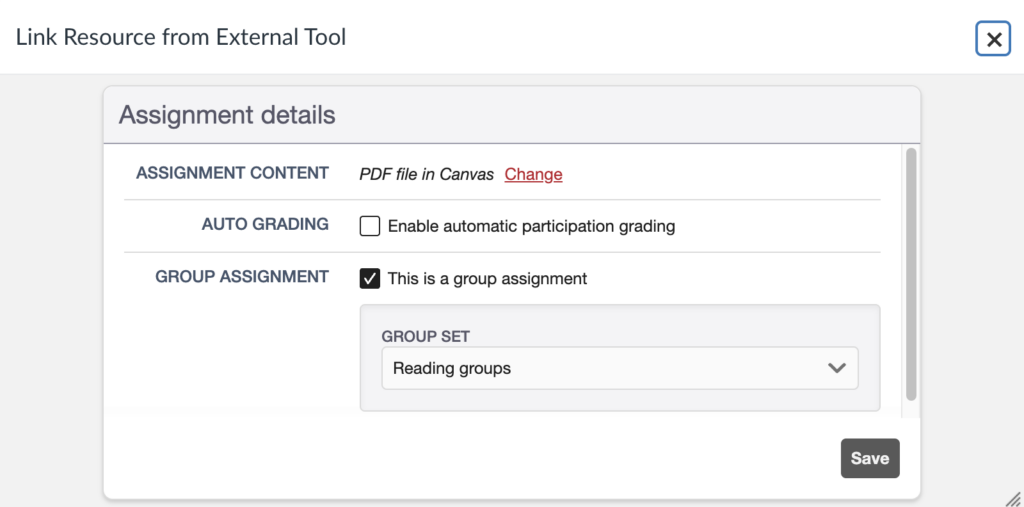
Note: If the Hypothesis assignment you’re trying to edit has never been launched in the course, instead of showing the dialog with the current document, group, and auto-grading settings, it will display the assignment mode dialog, where you can choose between Social Annotation and Paced Social Annotation.
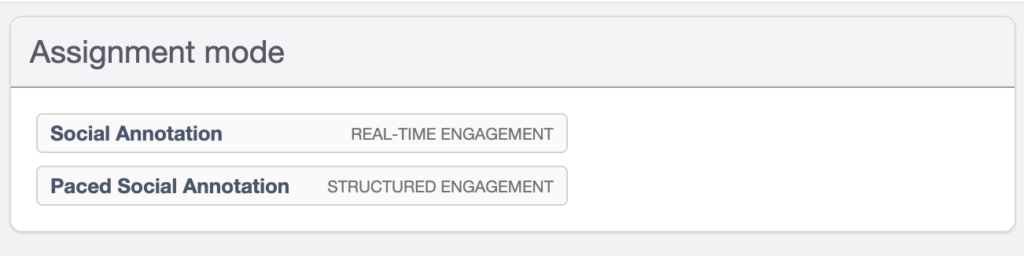
If the assignment dialog appears, continue with the assignment guides below instead.
- From that dialog, you can change the Assignment Content. You can also edit Auto Grading and Group Assignment settings. Configure these settings according to your preference. For detailed instructions, read the linked articles below:
- Click Continue once done. To save the changes completely, click Select and Save on the windows that opened from Steps 4 and 5.
- Launch the assignment and see the changes you made.