Who is this article for?
This guide introduces instructors to the different assignment modes available in the Hypothesis LMS app.
A Hypothesis subscription is required to use the Hypothesis LMS app. If your institution is not yet a Hypothesis customer, please contact us to speak with a member of our Education team about bringing Hypothesis to your school.
What are the different assignment modes in the Hypothesis LMS App?
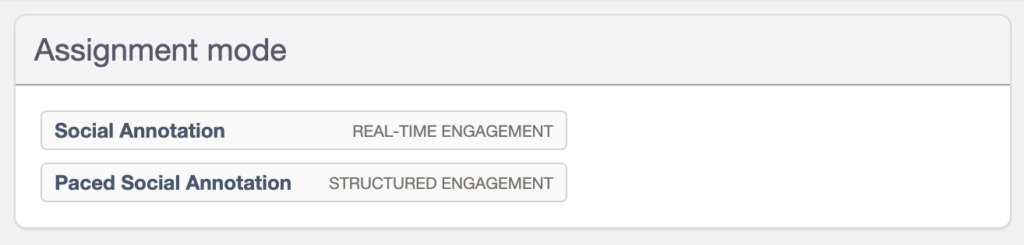
Social Annotation
This is the traditional Hypothesis assignment mode, where annotations are visible to both students and instructors as soon as they are posted. Because annotations are shared in real time, students and instructors can immediately read, reply to, and engage with one another’s annotations throughout the assignment.
For detailed steps on how to create Social Annotation assignments in your LMS, please view our related article here.
Paced Social Annotation
The ability to hide and reveal student annotations
With this assignment mode, instructors can create assignments where students’ annotations are initially hidden from their classmates. Instructors can view and reply to student annotations at any time, but the annotations remain invisible to other students until the instructor chooses to reveal them.
Once the annotations are revealed, the entire class (or group, if using the LMS Groups/Sections integration) can view all annotations made up to that point, along with any instructor replies that were previously hidden.
For additional details about Paced Social Annotation, click here.
For detailed steps on how to create Paced Social Annotation assignments in your LMS, please view our related article here.