Who is this guide for?
This guide is for instructors who want to embed Canvas Studio videos in Canvas Pages used in Hypothesis assignments. Following these steps will make sure the embedded video displays correctly in the Hypothesis assignment.
Get the Canvas Studio Video’s Embed Code
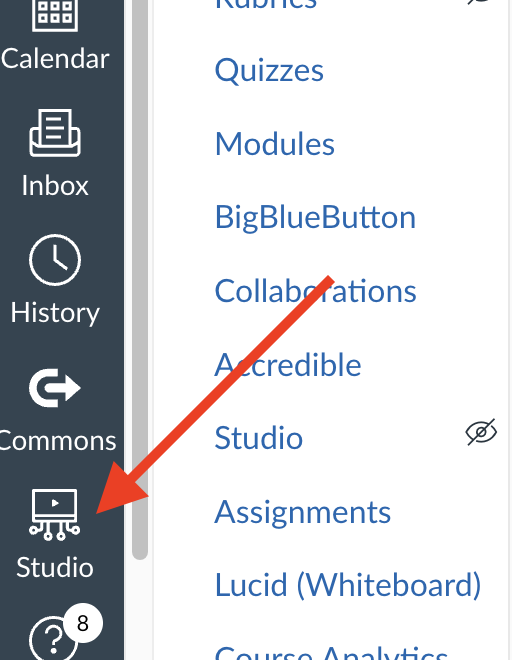
- In the Canvas navigation pane, click Studio.
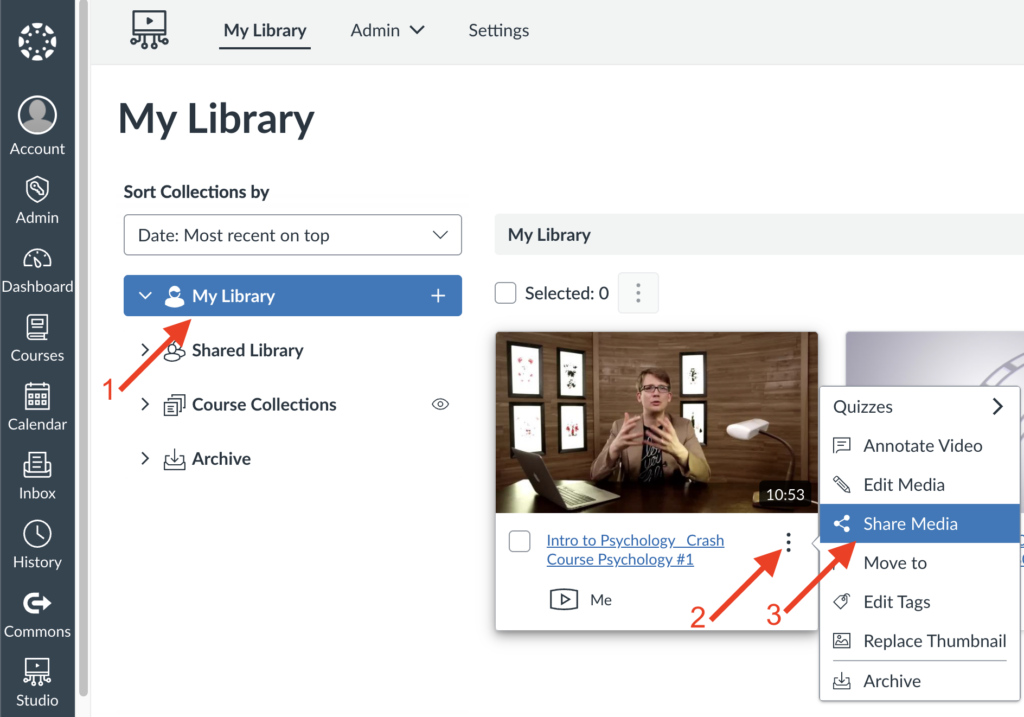
- In Canvas Studio, make sure My Library is selected under Sort Collections by.
- In your Canvas Studio My Library, look for the video you wish to use and click the three dots (⫶) under it and click Share Media. This will bring up the Share Media window.
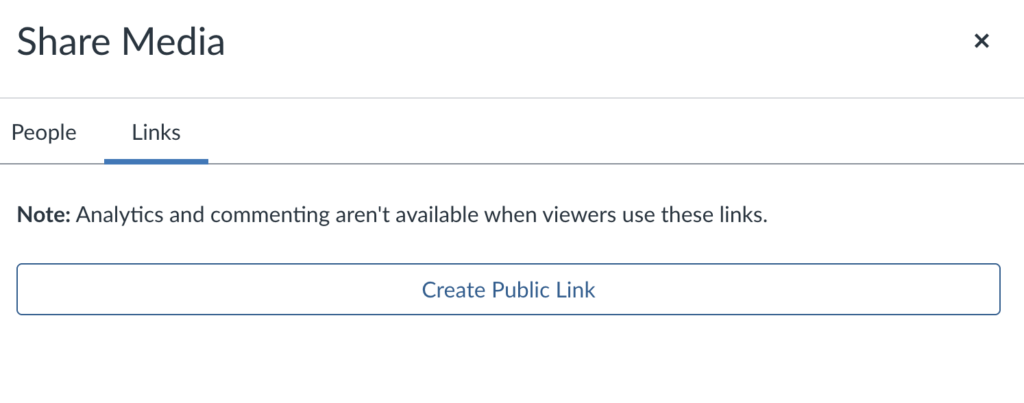
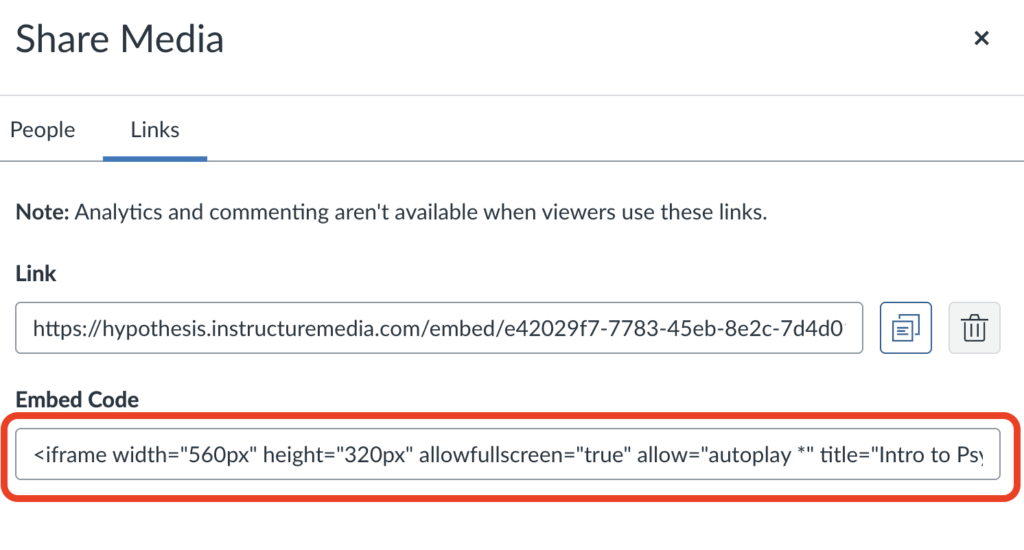
- In the Share Media window, click Links > Create Public Link to show the link and embed code. If the video already has a public link, you’ll see the link and embed code right away instead of the button. In that case, skip to Step 5.
- Copy the embed code and paste it into a text editor. You’ll need it later when setting up the Canvas Page for your Hypothesis assignment.
Embedding the Canvas Studio Video in a Canvas Page
- In your course, open the Canvas Page where you want to embed the Canvas Studio video.
- Click Edit.
- In the window to edit the Canvas Page go to View > HTML Editor. This will display the contents of the Canvas Page in HTML.
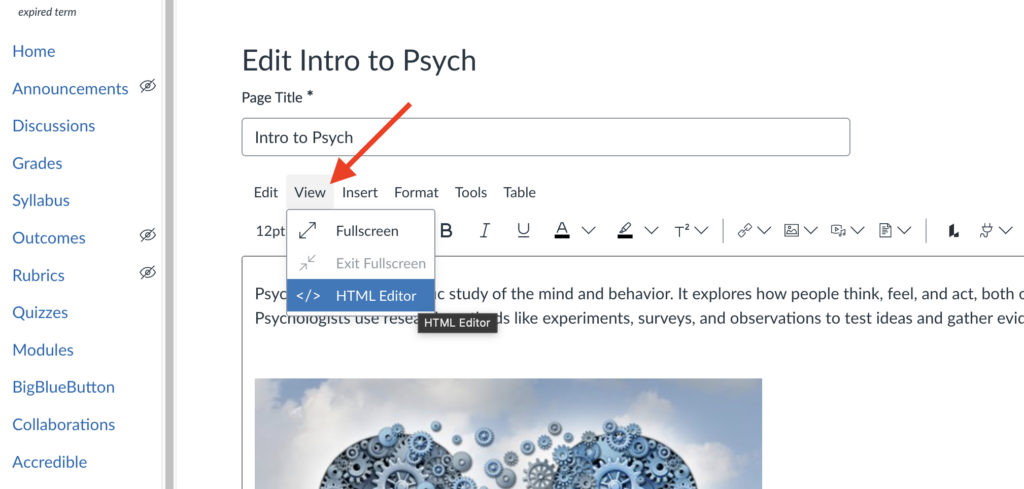
- In the HTML editor, find where you want the video to appear and paste the Canvas Studio embed code there.
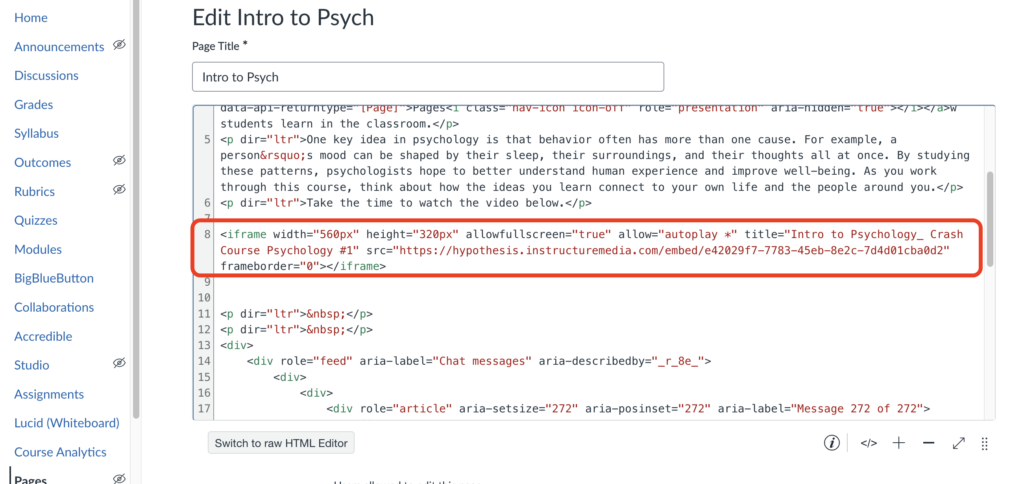
- Click Save, then view the Canvas Page to make sure the Canvas Studio video plays.
Once the Canvas Studio video is embedded in the Canvas Page, you can set up your Hypothesis assignment and select that page as the reading.
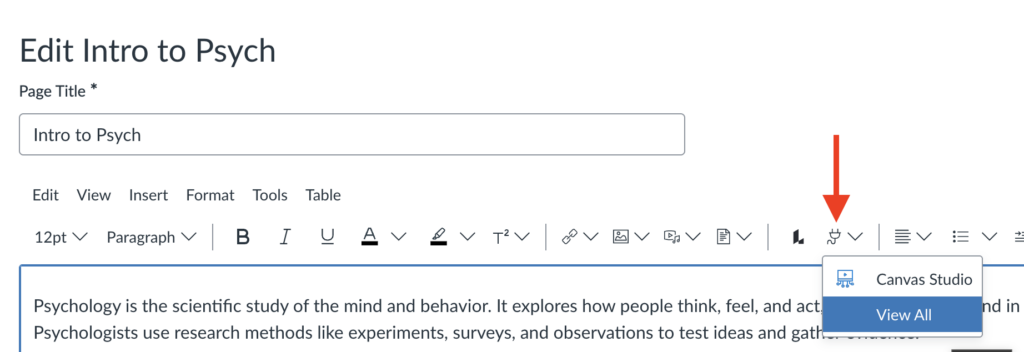
What happens when a Canvas Studio video is embedded using the Canvas Page editor’s embed tool?
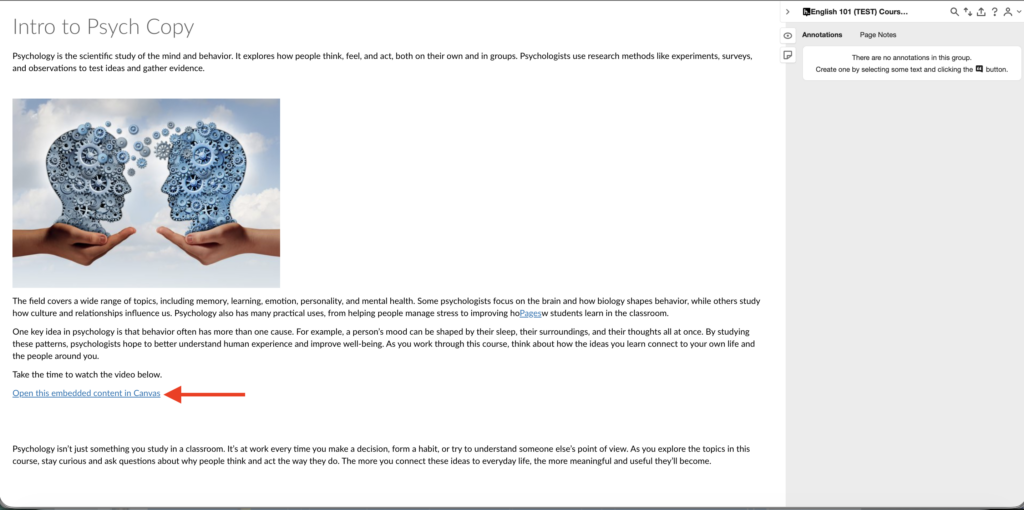
Note: The Canvas Page editor has an Apps option in the menu bar for embedding Canvas Studio videos. Videos embedded this way will play on the Canvas Page itself, but they won’t show up when the page is used in a Hypothesis assignment.
Here’s how a Canvas Page looks with a Canvas Studio video embedded using the embed code.
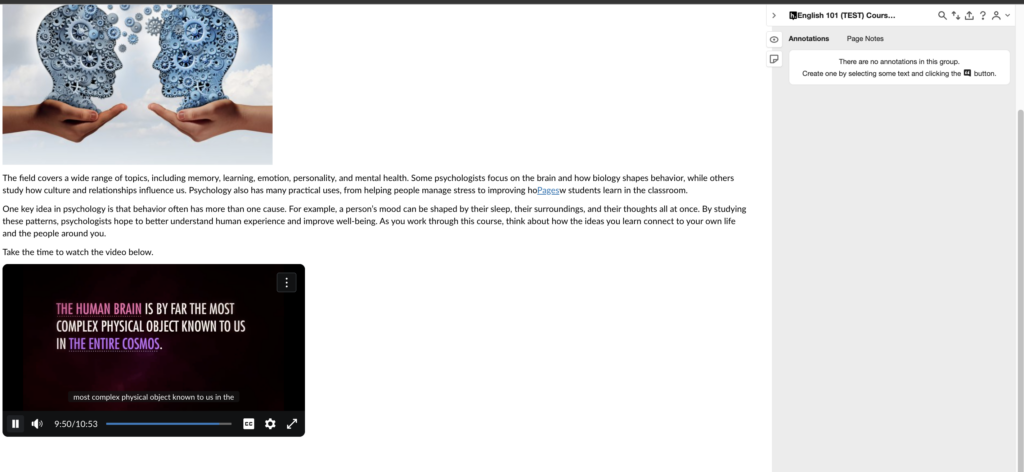
Here’s how a Canvas Page looks in a Hypothesis assignment when a Canvas Studio video is embedded using the Apps menu. Notice that the video is replaced with an Open this embedded content in Canvas link. Clicking it opens the video in a separate window.