What is Paced Social Annotation?
Paced Social Annotation is a way to prompt students to annotate a reading alone before they can see their peers’ annotations, all while allowing instructors to maintain visibility into student work. It allows students to get their own thoughts down, and then compare them with the rest of the class later. It also helps incentivize students to return to the text in an assignment after their initial read through.
A new assignment mode
You can still create traditional Hypothesis readings, now called “Social Annotation”. Paced Social Annotation is an additional assignment mode. When you create a new Hypothesis assignment, you’ll first be asked to choose which mode you want to use.
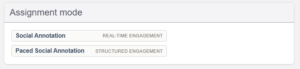
The ability to hide and reveal student annotations
When using this new mode, assignments start with each student’s annotations hidden from the other students in their class. Instructors will be able to view and reply to all student annotations, but otherwise these annotations will stay invisible to classmates until the instructor reveals them.
When revealed, the whole class (or group, if using the LMS Groups/Sections integrations) can see their peers’ annotations that were created up to this point, plus any previously-hidden instructor replies.
A step by step guide to using Paced Social Annotation
Setting up the assignment
1) Create a new external tool assignment in your LMS (for help, please see the LMS-specific guides listed below).
2) On the “Assignment mode” screen, select “Paced Social Annotation”.
3) Select the Manual Checkpoint option (a Checkpoint is when hidden annotations become revealed).
4) Select the document you want Hypothesis to display.
5) Optional: You can also turn on Groups and/or Auto Grading for the assignment. Paced Social Annotation assignments have extra auto-grading options that regular Social Annotation assignments don’t. Learn more here
From this point you will follow our usual steps for creating a Hypothesis-enabled reading. Please see our LMS-specific guides linked below.
- Creating Hypothesis Paced Social Annotation Readings in Canvas Assignments
- Creating Hypothesis Paced Social Annotation Readings in D2L Brightspace
- Creating Hypothesis Paced Social Annotation Readings in Moodle
- Creating Hypothesis Paced Social Annotation Readings in Blackboard Original
- Creating Hypothesis Paced Social Annotation Readings in Blackboard Ultra
While the assignment is in progress
What instructors can see:
You’ll see the document you selected and annotations in the Hypothesis Sidebar. In addition, Paced Social Annotation readings will also have a top bar that shows the checkpoint type (“Manual”) and a “Reveal annotations” button.

What students can see:
Students will see the instructor-selected document, the Hypothesis Sidebar, and a top bar that tells them the Hidden or Revealed status of their annotations.

When you are ready to reveal student annotations
As an instructor, click the “Reveal annotations” button in the top bar.
How can I use this feature?
Scaffolding the act of annotating
Paced Social Annotation allows instructors to get more original comments from students on their first pass, and then allows students to compare their comments with others on subsequent read-throughs. The initial student pass can still be supported by visible instructor annotations, but won’t contain their peers’ notes. Depending on your goals, instructors can stop here without revealing student annotations.
The instructor can also choose to reveal student annotations to the whole class at any point. Students can compare the text they annotated with the annotations of other students and reply to each other. Whether you’re introducing social annotation strategies or the acquisition of difficult academic topics, these incremental steps can be part of a scaffolding strategy in the classroom.
Encouraging student rereads and conversations
Even when we want students to check back in with a text several times over the course of an assignment, some students may wait until the last minute to provide their annotations or feel a single pass was sufficient to complete their objectives.
By setting up different time periods for annotations and replies, students return to the text after their peers have created annotations so they have more to reply to. They’re also creating replies around the times their peers do, making it easier to see the benefits of building habits that produce more involved conversations in the text. Building the habit of returning to a text is also helpful for getting students rereading the text and creating new comments on a second pass, whether over difficult sections of the text the class initially avoided, or with a new purpose that differs from the original pass.
1:1 instructor to student private annotation
Revealing annotations in a Paced Social Annotation reading is optional. With this new feature instructors can build a 1:1 (student and instructor) assignment with a few clicks of our new setup options.
Paced Social Annotation Q&A
What is a Paced Social Annotation Checkpoint?
A Checkpoint is the moment where hidden student annotations get revealed to the rest of the class (or group, if using the LMS Groups integration).
If an instructor creates an annotation, will that annotation be visible to the class?
Yes, if the instructor creates a top-level Annotation (one that is not a Reply) or a Page Note, that note will not be hidden from students during the hidden phase of a Paced Social Annotation reading.
Will student replies to the instructor annotations be visible to the class?
Student replies to an instructor annotation are not visible during the hidden phase of a Paced Social Annotation reading, but become visible once the Checkpoint is passed and annotations are revealed.
If an instructor replies to a student, will that reply be hidden from the rest of the class?
Instructor replies to student annotations are not visible during the hidden phase, but will become visible to all students once the Checkpoint is passed and annotations are revealed.
Can I make two assignments in the same course that use the exact same document, where one assignment is a Social Annotation assignment and one is a Paced Social Annotation assignment?
If you have a need to set up assignments in your course in this way please contact our support team so we can walk you through the proper steps to accomplish this.
How does Paced Social Annotation interact with editing an assignment?
In Canvas:
If you edit an assignment before it has any annotations, you will be brought to the beginning of the assignment workflow. From there you can select either assignment mode. You will need to re-select the document you want to use in the assignment along with any other assignment options (automatic participation grading, LMS Groups, etc).
If you edit an assignment after it has one or more annotations, then you will be brought to the last page of the assignment workflow. You can change the document used in the assignment along with the other assignment options, but you cannot change the assignment mode.
In other LMSs:
When you edit an existing assignment, whether or not it has annotations, you will be brought to the last page of the assignment workflow. There you can change the document and other assignment options, but you cannot change the assignment mode.
How does Paced Social Annotation interact with course copy?
If you create a Paced Social Annotation assignment in a course, and then in the future copy that assignment when you copy your course, the newly-created assignment will also be a Paced Social Annotation assignment. Please see this article for details on course copy and the LMS app.
Does Paced Social Annotation work with large classes?
Yes, Paced Social Annotation works with classes of any size. If you’d like to split your class into smaller groups, you can use Paced Social Annotation with our options LMS Groups feature.