This article walks through everything you can do with annotations in the Hypothesis web app: creating and posting them, sharing them, working in private groups, flagging problem content and finding your notes again on your activity page. If you use Hypothesis inside a course in Canvas, Moodle, D2L Brightspace or Blackboard, see Annotation Basics in the Hypothesis LMS App instead.
Getting started
Create an account. Sign up for a free account at https://hypothes.is/signup. You’ll need it to post annotations, join groups and flag content. Anyone can read public annotations without an account. For more details on creating a Hypothesis web app account, see Quick Start Guide for Hypothesis. Web App
Open Hypothesis on a page. There are a few ways to turn Hypothesis on:
- Chrome extension. Install it from the Chrome Web Store, then click the Hypothesis icon in your browser toolbar on any web page or PDF. The icon shows how many annotations are on the page. For details on how to install the Hypothesis Chrome extension, see Installing the Chrome Extension.

- Bookmarklet. Drag the Hypothesis bookmarklet to your bookmarks bar, then click it on any page. Use this in browsers that don’t support the extension. For details on how to install the bookmarklet, see Installing the Bookmarklet.
Log in. Click Log in at the top of the sidebar. Once you’re logged in, your username appears in the account menu.
Taking notes
Creating notes
There are four kinds of annotations in Hypothesis.
Annotations. Select any text on the page, and a small menu called the Adder pops up with two buttons: Annotate and Highlight. Click Annotate to open a card in the sidebar, write your note and post it.
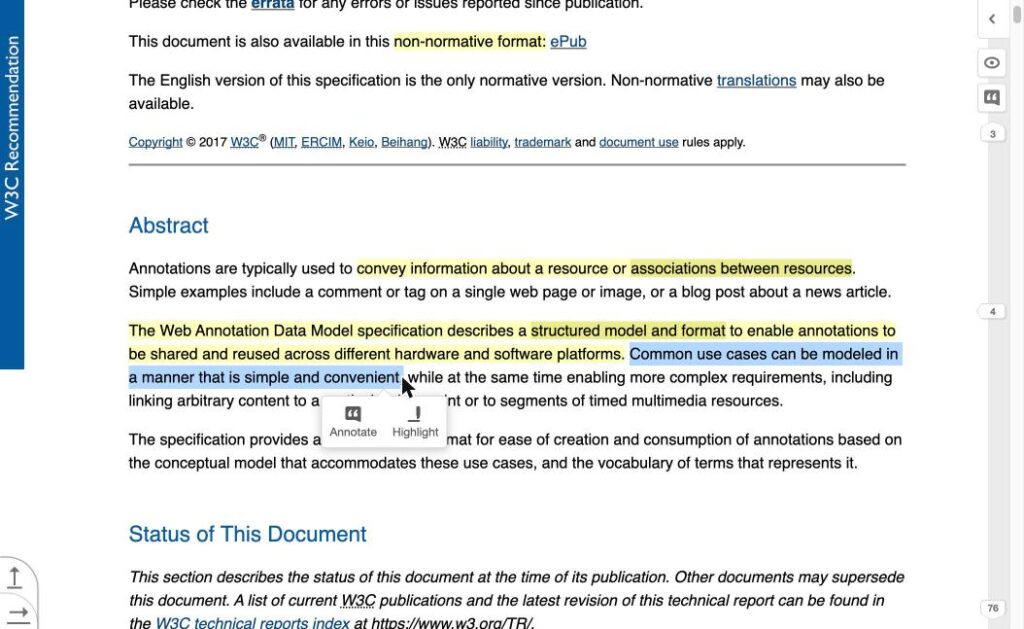
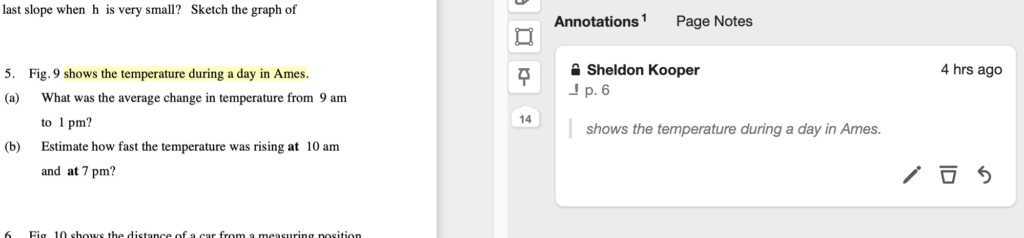
Highlights. Click Highlight instead, and your selection is saved right away, with no need to post. Highlights are private: only you can see them, which is why they show a lock icon.
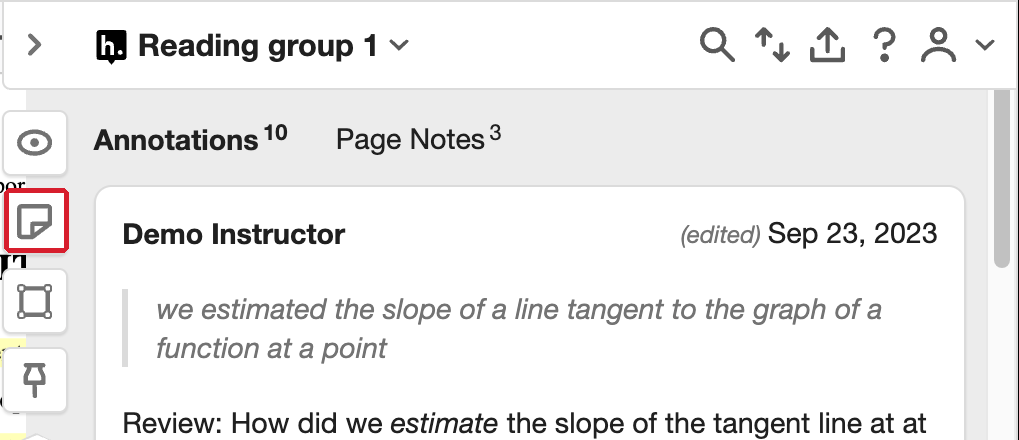
Page Notes. A Page Note isn’t attached to any particular passage. Use it for comments about the whole page. Click the Page Note button at the top of the sidebar to create one.
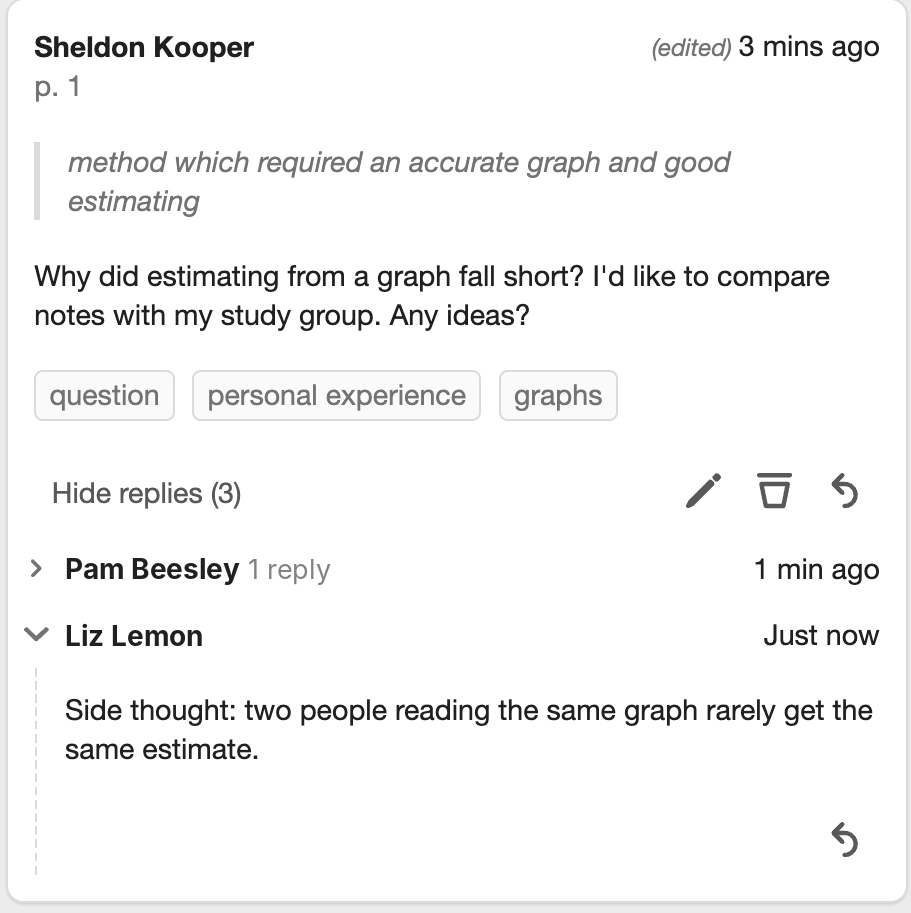
Replies. You can reply to any Annotation or Page Note. Replies stay on the same card as the original, so the whole conversation stays together.
Annotating images. On PDFs you can also annotate images and figures. Click the rectangle button in the sidebar and drag across an area, or click the pin button and click a single spot.

Writing notes
The comment box and toolbar. Write your note in the comment box. The toolbar adds bold, italics, quotes, lists, links, images and math (LaTeX). Click Preview to see what others will see. For additional details, see Using the Annotation Editor.
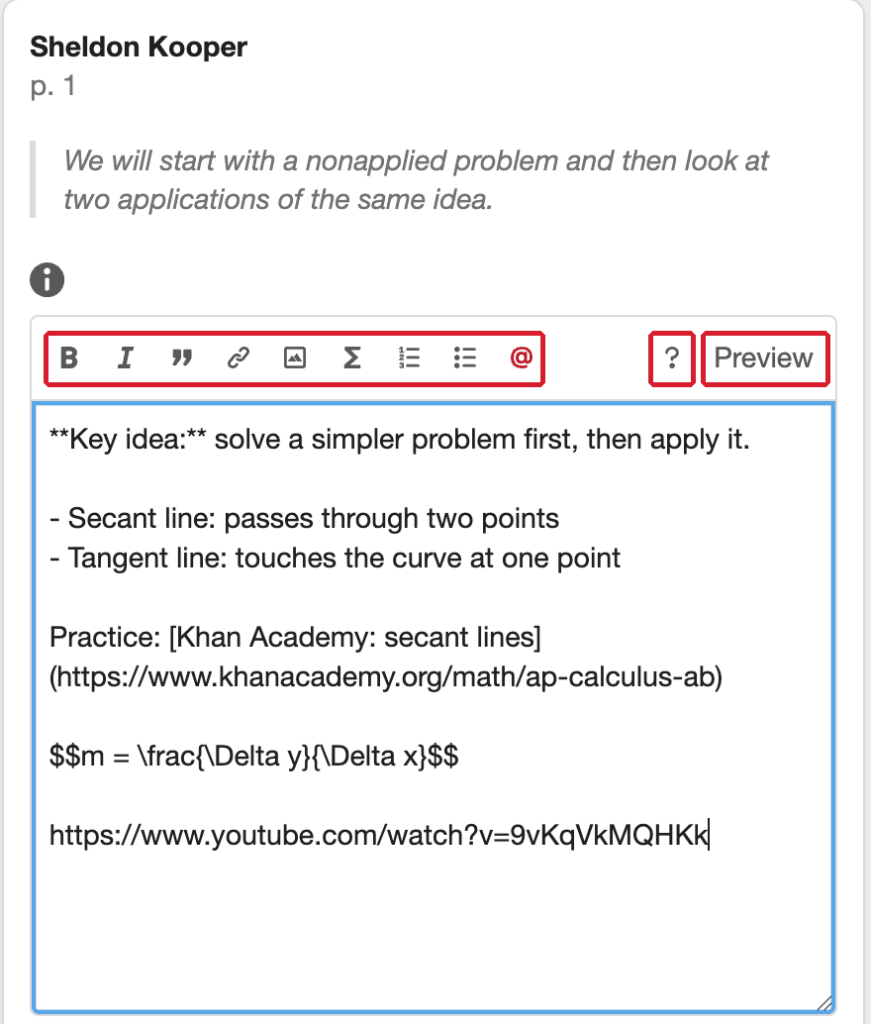
Links, images and video. Use the link and image buttons to embed them. Paste an embeddable YouTube or Vimeo link on its own line, and it becomes a playable video. See Adding links and images to your annotations.
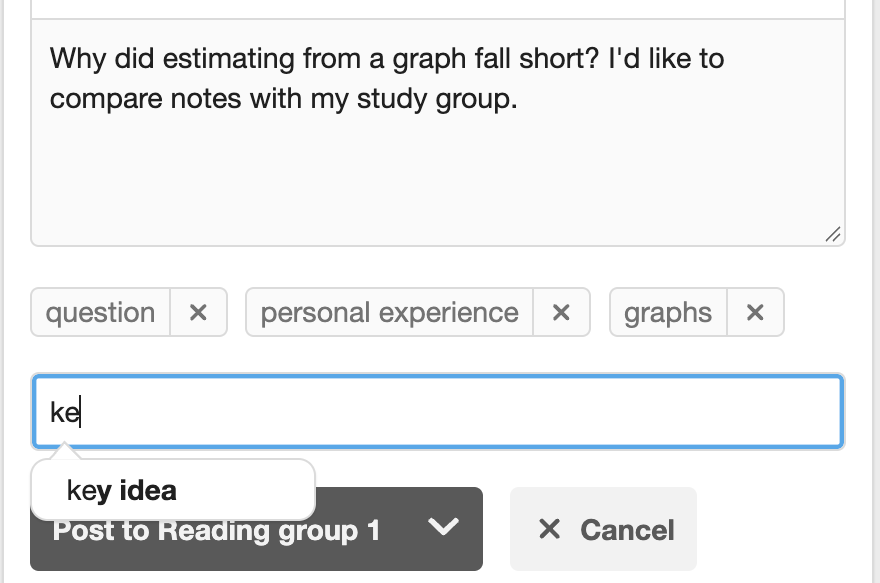
Tags. Type a tag and press Enter to add it. Tags help you organize your notes and find them later.
Posting notes
Everything except Highlights needs to be posted. The arrow next to Post lets you choose who sees it:
- Public: anyone on the web who opens Hypothesis on that page can read it.
- A private group: only members of that group can see it. See Creating private groups below.
- Only Me: a private note nobody else sees. Private notes show a lock icon.

The group selected at the top of the sidebar sets where new notes go, so check it before you post.
Editing and deleting notes
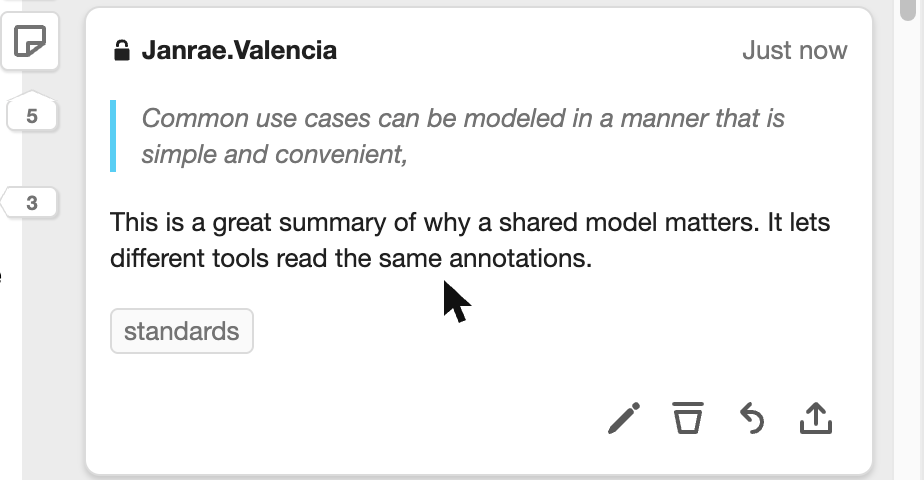
Click the pencil icon to edit any of your own annotations, including who can see them. Click the trash can to delete one. If you’re writing a note and change your mind, click Cancel to discard it.
Navigating notes
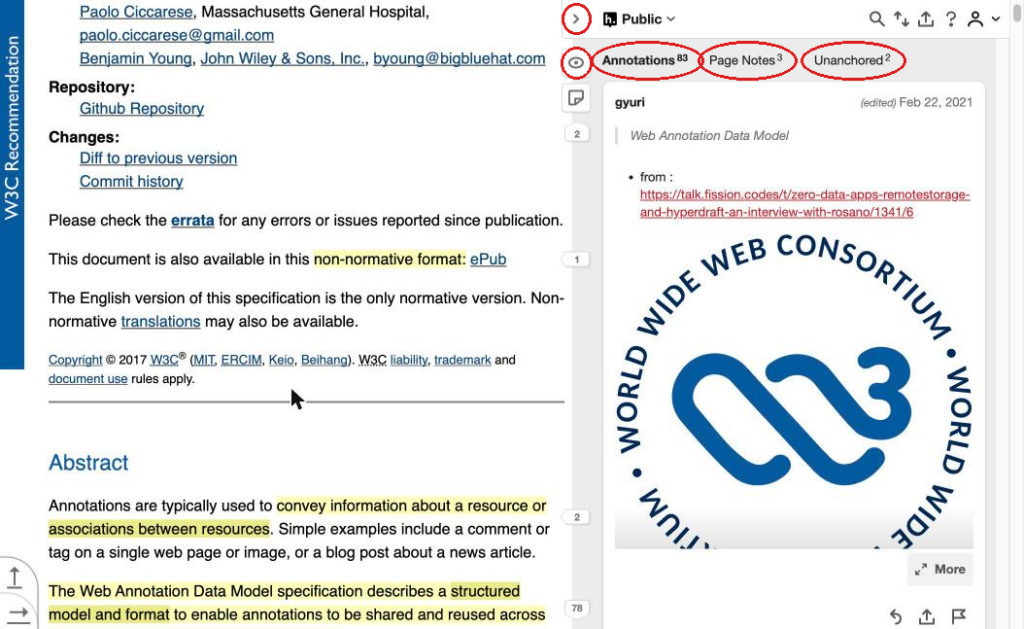
The sidebar. Use the arrow at the edge of the sidebar to collapse or expand it, and drag the edge to resize it. The eye button turns highlights on the page off and on. Annotations and Page Notes each have their own tab, and an Unanchored tab appears when an annotation’s text has changed or disappeared.
Moving between the page and the sidebar. Click a highlight on the page, and the sidebar shows just that annotation. Click a card, and the page scrolls to its highlight.
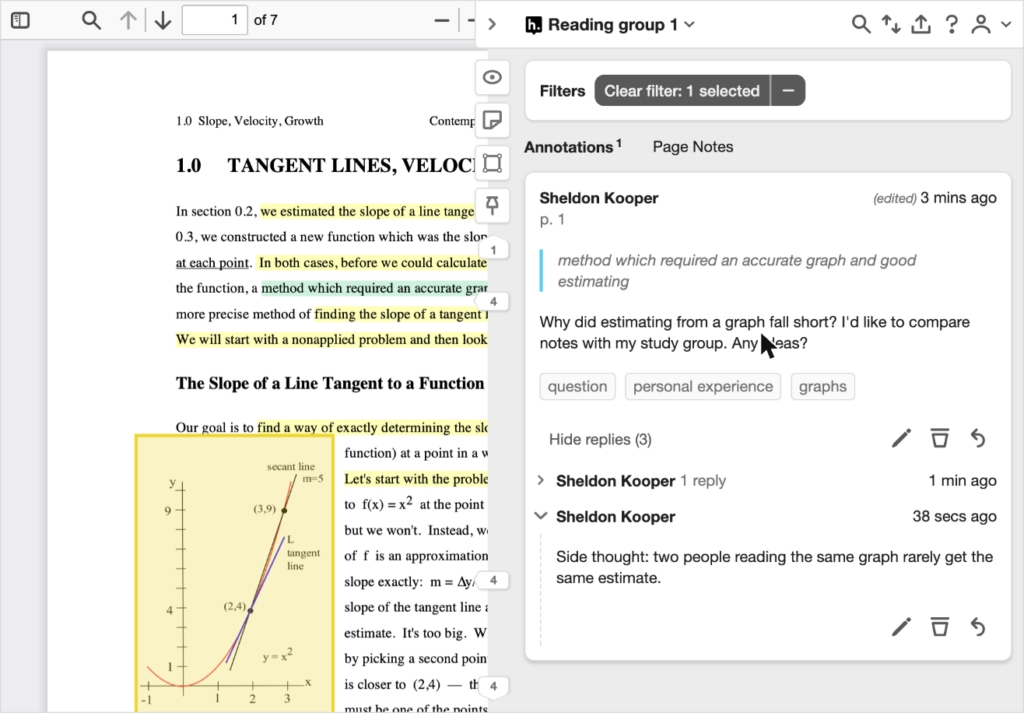
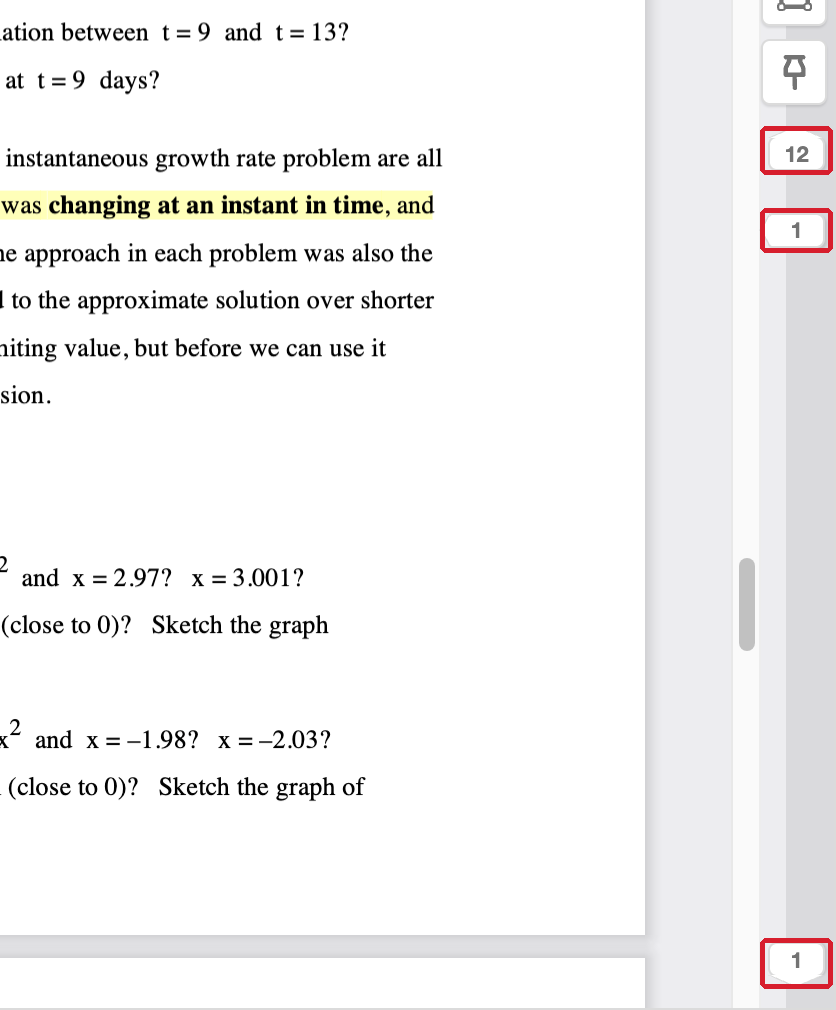
The bucket bar. The narrow bar along the edge of the sidebar shows where annotations are on the page. Click a bucket to show just those annotations, or click an arrow to jump to the next set.
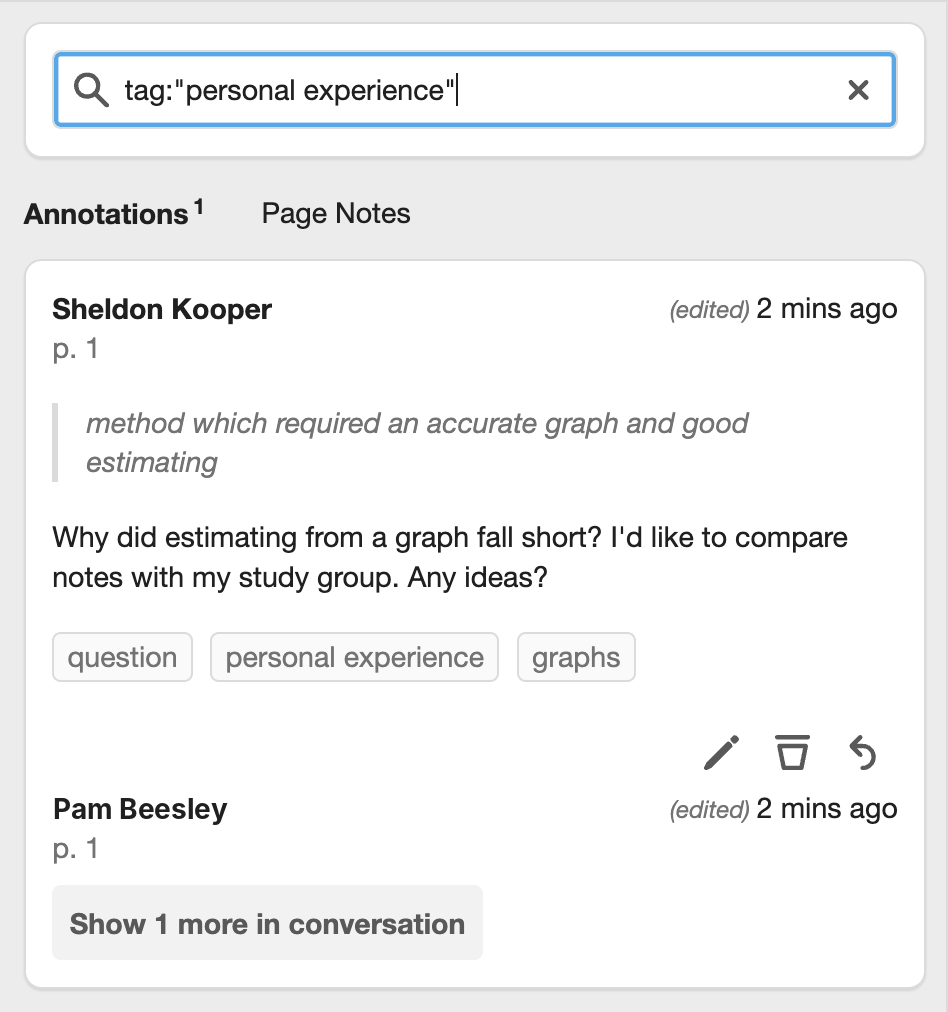
Search. Click the magnifying glass to search notes, selected text, author names and tags. Use tag: to find a tag and user: to find one person’s annotations. Sort cards by newest, oldest or location on the page. See How Hypothesis search works.
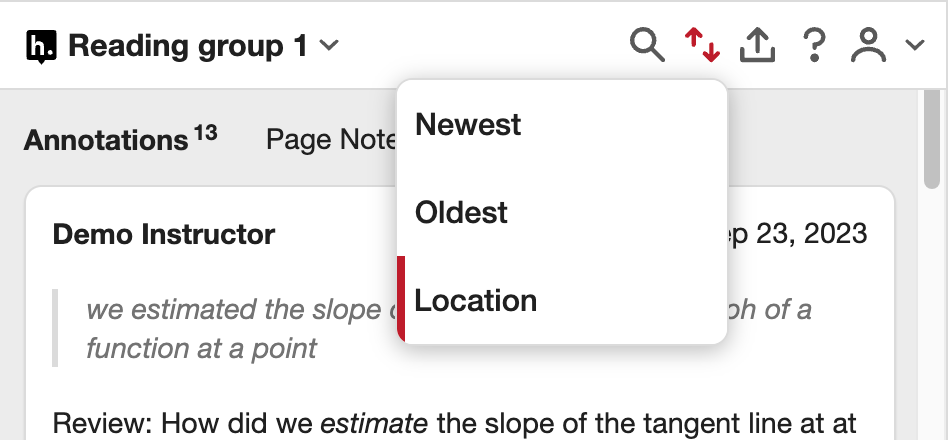
Sort. Sort cards by newest, oldest or location in the reading, which is the default.
Creating private groups
A private group lets you annotate with a set of people, like a study group, book club or research team, without posting to the Public layer. Only group members can read and reply to the group’s annotations.
Create a group.
- Log in, then open the groups menu at the top of the sidebar.
- Click Create new group. You can also go straight to https://hypothes.is/groups/new.
- Enter a name and an optional description, then click Create group.
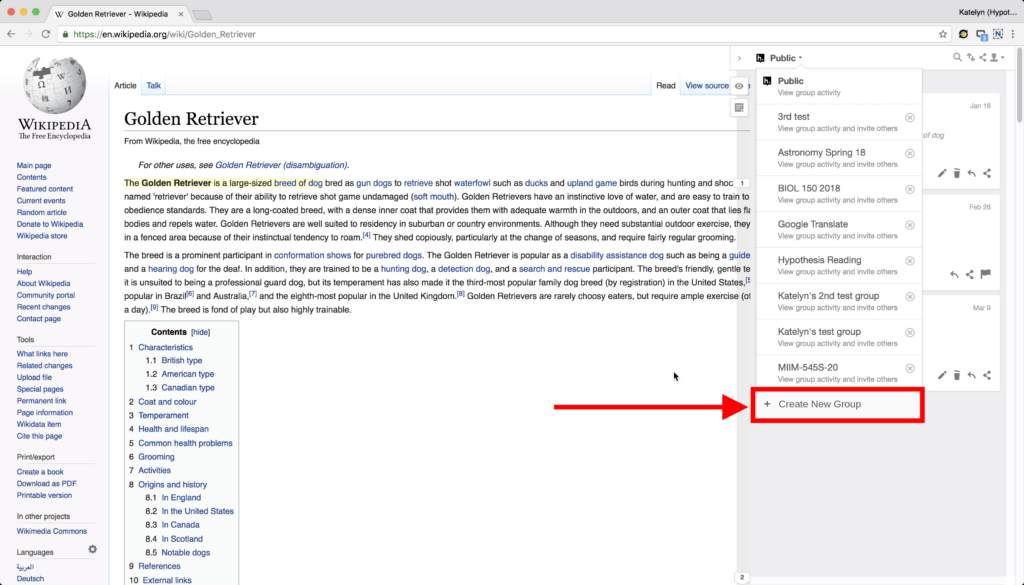

For more details, see How to Create a Private Group.
Invite people. After you create the group, copy its invite link and send it to the people you want to join. They click the link, log in or sign up, and they’re in. You can find the link again anytime from the group’s page or by choosing Invite people from the groups selector in the sidebar. For more details, see How to Invite Members to a Private Group.
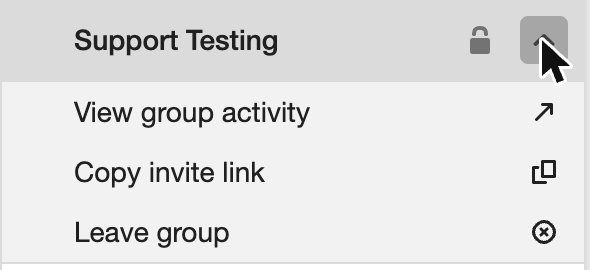
Annotate in the group. Pick the group in the groups selector in the sidebar before you annotate. New notes post to that group by default, and the sidebar shows only that group’s annotations.
Manage or leave a group. Group creators can edit the group’s name and description from the group’s page. To leave a group, open the groups menu, hover over the group and click Leave group.
Sharing annotations
Every annotation has its own link, so you can point someone straight to it.
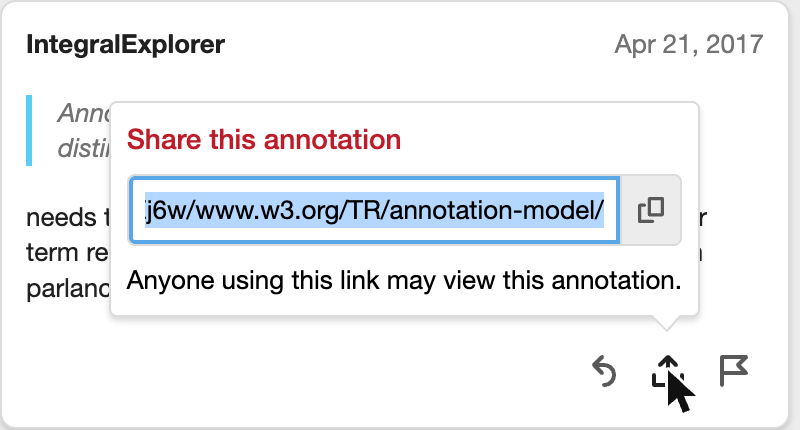
Share one annotation. Click the share icon at the bottom of a card. Copy the link, or share it by email or social media. When someone opens the link, the page loads with Hypothesis on and scrolls to the annotation.
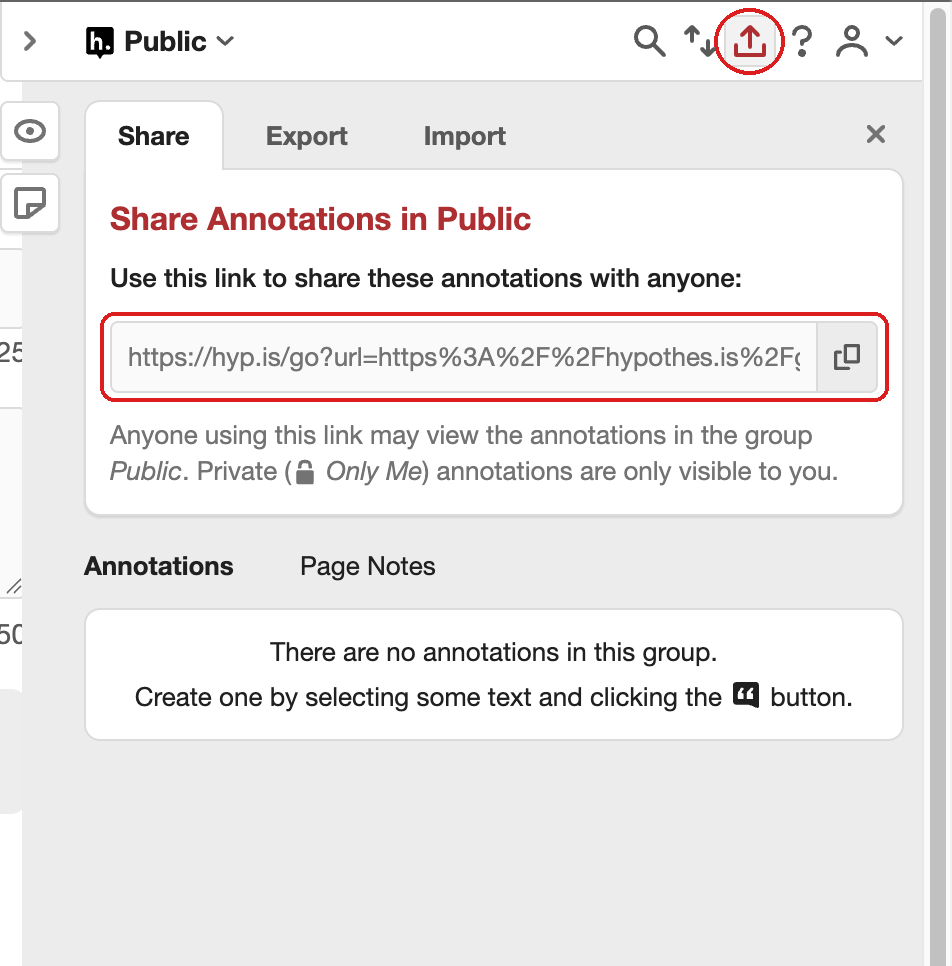
Share all annotations on a page. Click the share button at the top of the sidebar to get a link that opens the page with all its annotations showing.
Who can see what you share. A shared link doesn’t change who can read the annotation. Public annotations are visible to anyone. Group annotations are visible only to group members, so others will be asked to join or log in. Only Me annotations can’t be shared.
Flagging annotations for moderation
If you see an annotation that breaks our Community Guidelines, like spam, harassment or hate speech, you can flag it for review.
- Log in and find the annotation in the sidebar.
- Click the flag icon at the bottom of the card.
- The flag turns solid to show it’s been reported.


Flags on Public annotations go to the Hypothesis team. Flags in a group go to that group’s moderators. Moderators can hide an annotation, which removes it from view for everyone except its author and the moderators. You can’t flag your own annotations. For more details, see Moderation for Groups.
The Hypothesis activity page
Your activity page collects every annotation you’ve made, on every site, in one place. Open it by clicking your username in the sidebar’s account menu, or go to https://hypothes.is/users/ followed by your username. Ex. https://hypothes.is/users/John.Doe.
What you’ll see. Annotations are grouped by the page they were made on, newest first, with a count of your annotations, groups and top tags.

Search and filter. Use the search bar to narrow results. You can combine filters:
- tag: finds annotations with a tag
- url: finds annotations on a specific page
- group: limits results to one group
- user: finds one person’s public annotations

For additional details, see Searching on the Hypothesis Activity Page.
Group activity pages. Each group has its own activity page with all of its members’ annotations. Open it from the groups selector in the sidebar or from the groups dropdown in the activity page.

Go back to the page. Click an annotation’s page title to reopen the page with Hypothesis on, or click the link icon on a card to jump straight to that annotation.

Export your notes. To save a copy of your annotations, open the account menu in the sidebar and choose Export. See Exporting and importing annotations.